Build a privacy-friendly AI support responder
AI email assistants like LIAM need full access to your mailbox. Here's how to build a smarter, safer version — where the AI only sees the emails you explicitly send it.
What you'll build
An AI-powered support responder that receives customer emails, queries your knowledge base, drafts a response, and sends it — all without giving any third party access to your mailbox.
Why not just use LIAM or similar tools?
AI email assistants are becoming mainstream. Tools like LIAM promise to draft replies, manage your inbox, and handle scheduling — all for $25/month. The catch? They need full OAuth access to your mailbox. Every email you've ever received, every attachment, every conversation.
That's a lot of trust to put in a single service. If they get breached, if their AI hallucinates a response to the wrong person, if their privacy policy changes — your entire email history is exposed.
There's a better architecture.
| Aspect | AI inbox tools (e.g. LIAM) | This build |
|---|---|---|
| Inbox access | Full OAuth — all emails | Only emails you route to it |
| AI provider | Their choice | Yours — Claude, GPT, Ollama, etc. |
| Knowledge source | Your email history | Your curated KB |
| Human review | AI sends autonomously | Optional approval step |
| Data residency | Unclear | EU (EmailConnect) + your infra |
| Cost | $25/mo + risk | EmailConnect plan + LLM tokens |
How it works
Email arrives
Customer sends a message to support@yourdomain.com
EmailConnect parses to JSON
Sender, subject, body, attachments — structured and webhooks to n8n
n8n queries your knowledge base
Searches Notion for the most relevant article to the customer's question
LLM drafts a response
Uses the KB article as context — grounded answers, no hallucination
Reply sent (or escalated)
Confident answer? Send it. Uncertain? Forward to a human and let the sender know.
At no point does the AI have access to your mailbox. It sees one email at a time, only when EmailConnect forwards it. That's the fundamental architectural difference.
What you'll need
Services
- An EmailConnect account (free tier works)
- An n8n instance (self-hosted or cloud)
- A Notion workspace (free tier works)
- An LLM API key (Anthropic, Mistral, or similar)
Knowledge
- Basic n8n workflow experience
- A domain you control (for the support email)
- FAQ or support articles to populate the KB
Step 1: Set up EmailConnect
Create an alias for your support email — something like support@in.yourdomain.com. Point it at an n8n webhook URL. EmailConnect handles the MX records, email parsing, spam filtering, and DKIM/SPF validation. You get clean, structured JSON.
If you haven't set up EmailConnect yet, follow the getting started guide — it takes about 10 minutes.
Example webhook payload from EmailConnect
{
  "from": {
    "email": "customer@example.com",
    "name": "Sarah Johnson"
  },
  "subject": "Can't reset my password",
  "content": {
    "text": "Hi, I've tried resetting my password three times but I'm not getting the email. Can you help?",
    "html": "..."
  },
  "attachments": []
}
Step 2: Build the Notion knowledge base
Create a Notion database for your support articles. This is what the AI will search when a question comes in. Keep it simple:
| Property | Type | Purpose |
|---|---|---|
| Title | Title | Article name (used for search matching) |
| Content | Rich text | The actual answer / article body |
| Keywords | Multi-select | Tags to improve search accuracy |
| Category | Select | e.g. Account, Billing, Technical |
Populate it with your existing FAQ, help docs, or common support responses. The more articles you add, the better the AI gets at finding relevant answers. Start with 10–20 articles covering your most common questions.
Step 3: Build the n8n workflow
This is where the magic happens. The n8n flow connects EmailConnect's webhook to your Notion KB and the LLM.
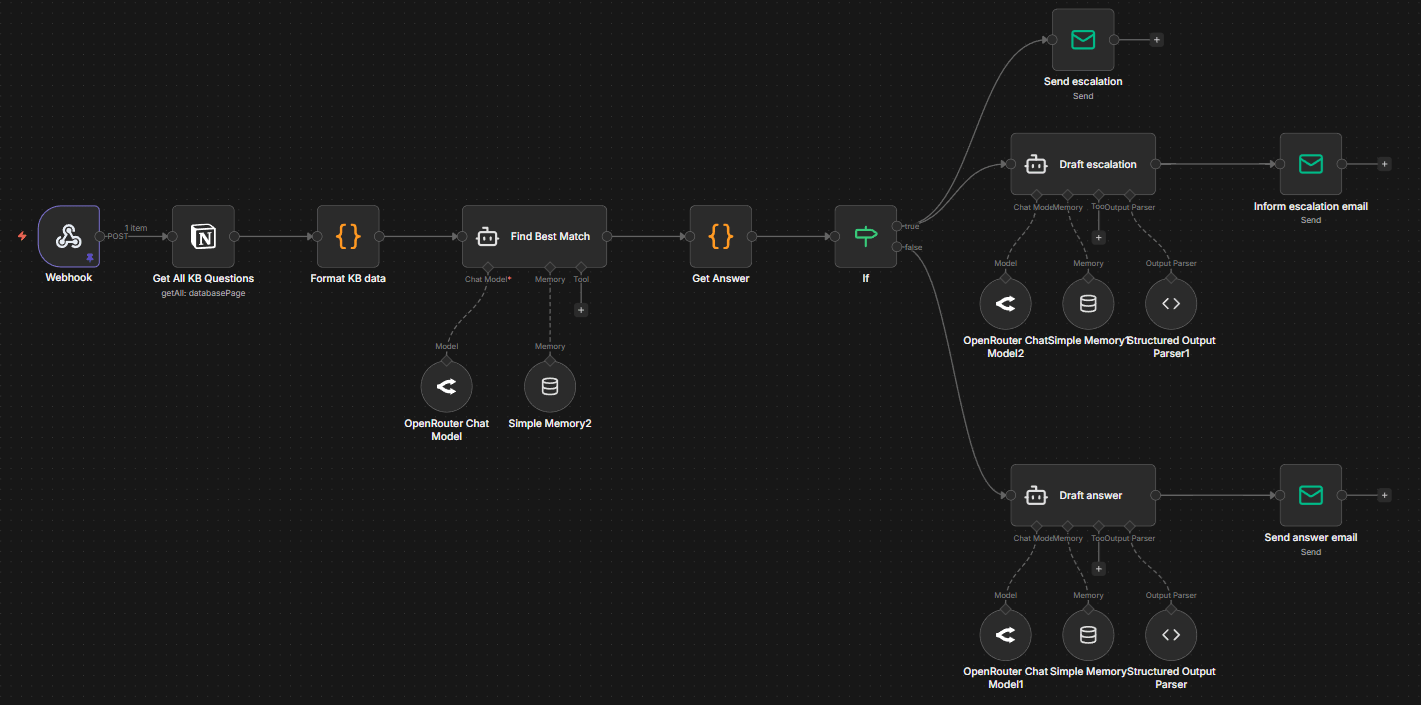
The complete n8n workflow — Webhook → KB lookup → LLM match → draft reply or escalate
Download the workflow
Import this JSON into your n8n instance to get the full flow. You'll need to add your own credentials (OpenRouter, Notion, SMTP) and set your Notion database ID.
Download n8n workflow JSONNode-by-node walkthrough
1. Webhook
Receives the POST payload from EmailConnect. The JSON includes the sender, subject, body, and attachments. Copy this webhook URL into your EmailConnect alias configuration.
2. Get All KB Questions
Fetches every entry from your Notion knowledge base database. Each entry has a question, answer, and optional help article URL. The flow loads the full KB on each run — works great for databases up to a few hundred entries.
3. Format KB data
A code node that extracts Q&A pairs from Notion and formats them for comparison. Each entry gets an ID, and the first 120 characters of each answer are included as context to improve matching accuracy.
4. Find Best Match (LLM)
An AI agent that compares the customer's question against all KB entries using semantic similarity. It considers keyword matches, intent, and context. Returns the ID of the best match, or NO_MATCH if confidence is below 70%. Uses OpenRouter so you can pick any LLM model.
5. Get Answer
A code node that looks up the matched KB entry and returns the full answer. If the LLM returned NO_MATCH or the ID is invalid, it flags the message for escalation instead.
6. If (escalate?)
Routes the flow based on whether a good KB match was found. True = escalate to human. False = draft an AI response.
7a. Escalation path
Two parallel actions: sends an internal notification with the full question details so you can follow up manually, and drafts a polite email to the customer letting them know their question was forwarded. The LLM matches the customer's tone — formal gets formal, casual gets casual.
7b. Answer path
The LLM drafts a response using the KB article as source material, tailored to the customer's specific question. It can include a help article link if one exists. A structured output parser ensures the response comes back as a clean { subject, message } object, ready to send.
Conversation memory
A subtle but powerful detail: the flow includes conversation memory per sender. Each LLM agent has a buffer window memory keyed by the sender's email address. If the same person emails again, the AI has context from previous exchanges — it can reference past conversations and avoid asking the same questions twice.
Step 4: The human-in-the-loop option
Here's where this setup really pulls ahead of tools like LIAM: you can add a human approval step. Instead of the AI sending responses autonomously, it can send you the draft via Telegram with approve/reject buttons.
AI drafts a response based on your KB
Telegram message with the draft + "Send" / "Don't send" buttons
You tap approve → response is sent. Tap reject → email is escalated.
This gives you the speed of AI with the safety net of human judgment. Run it in approval mode until you trust the system, then switch to fully automatic when you're confident.
How we use it at EmailConnect
This isn't hypothetical. We run this exact setup on support@emailconnect.eu. When a customer emails our support address:
- EmailConnect receives and parses the email
- n8n queries our Notion knowledge base (help articles, FAQs, docs)
- An LLM drafts a response grounded in our actual documentation
- If the match is strong, the reply goes out. If not, the customer hears that their message was forwarded, and we handle it manually.
It handles the majority of common questions automatically. The rest get escalated — no false confidence, no hallucinated answers.
Tips and considerations
Start small
Begin with the Telegram approval flow. Once you see the AI getting it right consistently, switch to auto-send.
Keep the KB curated
Quality over quantity. Ten well-written articles will outperform a hundred copy-pasted docs.
Set clear boundaries
Tell the LLM what it shouldn't do — don't make promises, don't share pricing, don't improvise answers beyond the KB.
Log everything
n8n keeps execution logs. Review them weekly to spot questions your KB doesn't cover yet.
The privacy argument
This build demonstrates a broader principle: you don't need full mailbox access to build smart email automation. Selective email routing — where you control exactly what the AI sees — is both safer and more flexible.
With EmailConnect, the AI never has persistent access to anything. Each email is a single, isolated event. Your mailbox stays yours. Your customer data stays under your control. And you can swap out any component — the LLM, the KB, the automation platform — without being locked into a single vendor.
Build it yourself
Download the n8n workflow, create a free EmailConnect account, and have this running in under an hour.
Related
Questions about building this workflow? Reach out at hello@emailconnect.eu.